
Saving CAN log files
SeerWatch provides the ability to save CAN data to log files for later analysis and sharing. There are two ways to save data: using a log capture, or saving a message trace. We’ll walk through how each works, and some applications for each.
What they have in common
- Both save CAN data to log files
- Both apply filters
- Both save data in the can-utils/candump
.logformat
Log Capture
Section titled “Log Capture”The log capture writes each message received from a network connection to a log file as it is received. Any message filters are applied as the message is saved. A log capture is specified at the beginning of a connection and persists for the duration of your connection.
SeerWatch has a large - but limited - buffer space for messages in the message trace. The log capture ensures that every message is saved even when the CAN message trace fills up.
The log capture is the default recommended way to save CAN log data when connected to a CAN network.
You can setup a CAN log file by going to the live tab and clicking Select File under the capture log section while disconnected.

The status text will show Recording to file on the left sidebar when recording is active.
Saving a message trace
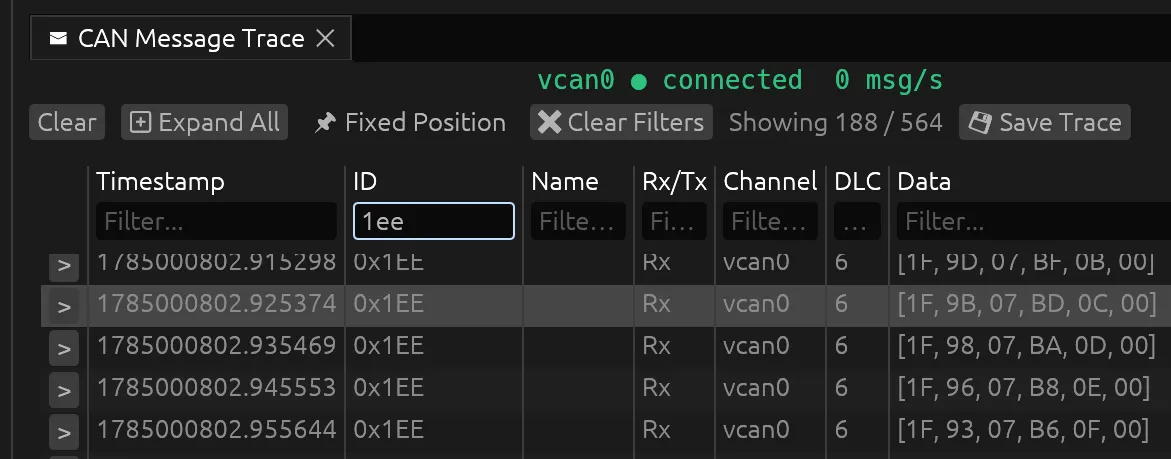
Section titled “Saving a message trace”Saving a message trace saves the current CAN message view to a log file. Any filters will apply at the time you save the log file.
Since the filter applies at the time you click save message trace, this enables some interesting workflows. For example, if you want to filter an existing log file for a specific CAN ID you can
- load the file
- add your CAN ID filters
- save your message trace
You end up with the data from your original log filtered down to the frames you want.
Saving is a message trace is also the only way to save a log from the SeerWatch Web GUI.
To save a message trace you can click the Save Trace button in the CAN message view.
When to use one or the other
Section titled “When to use one or the other”The key to remember is that Log Capture saves the message as it is received, saving a message trace saves the current view.
Log Capture
- You are connecting to CAN network and want to save a log
- You are recording long sessions (>100,000 messages)
Saving a message trace
- You want to grab the current CAN message view
- You are using the Web UI
- You loaded a log file and want to save a filtered version of that log